
How to Check-in Online
There are two ways to check-in online. You can check-in online either through the Reservation Details screen or by directly visiting our website for online check-in.
If you reserved your flight ticket through Solaseed Air website, you can check-in online in either way.
If you reserved your flight ticket through other than Solaseed Air website, please follow "Directly check-in online".
Cautions
- After online check-in is complete, print your boarding pass (2D barcode) or save the screen displaying your boarding pass and bring it to the airport on the day of your flight.
Online check-in through the Reservation Details screen
STEP1

STEP2

On the reservation search screen, enter the boarding date, flight number, confirmation number or reservation number, and passenger name for the purchased flight ticket, and then proceed to the reservation details screen.
STEP3

Click (tap) "Online check-in" shown on the reservation details screen.
- The "Online check-in" button appears, starting 24 hours prior to your departure.

Further steps will be managed on ANA's official website.
STEP4

Enter the information of your credit card used for the payment or confirmation number.
- If you paid in cash including convenience store payment, the credit card information section is not shown.
STEP5

Flights eligible for online check-in in your itinerary are displayed.
All passengers on the same reservation are shown.
Select all the passengers to check-in, and click (tap) "Next".
- If you have not selected a seat, you are directed to the Seat reservation screen.Select a seat and click (tap) "Next".
STEP6

Confirm the itinerary and passengers that you are checking in online for.
- If you wish to change your seat, click (tap) "Reserve/Change Seats".
STEP7

Once online check-in is complete, display your boarding pass.
STEP8

Print your boarding pass (2D barcode) or save the screen displaying your boarding pass.
- If using a PC for online check-in, print your boarding pass and bring it to the airport on the day of your flight.
- If using a smartphone for online check-in, save the screen displaying your boarding pass. (If using an iPhone for online check-in, you can add your boarding pass to your Apple Wallet.)
Directly check-in online
Cautions
- Please prepare the date and number of your reserved flight and your confirmation number.
STEP1

STEP2

Through "Check-in online" on the check-in information page, proceed to the online check-in reservation search screen.
STEP3
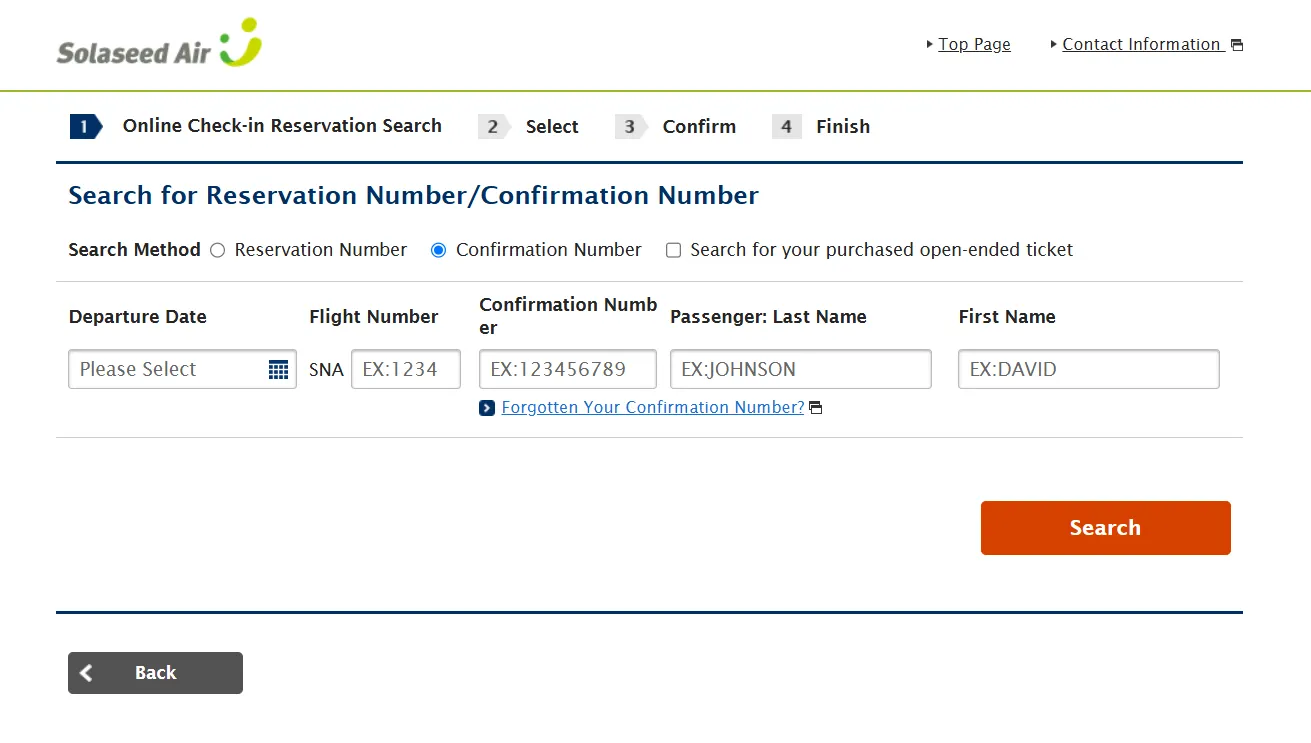
STEP4
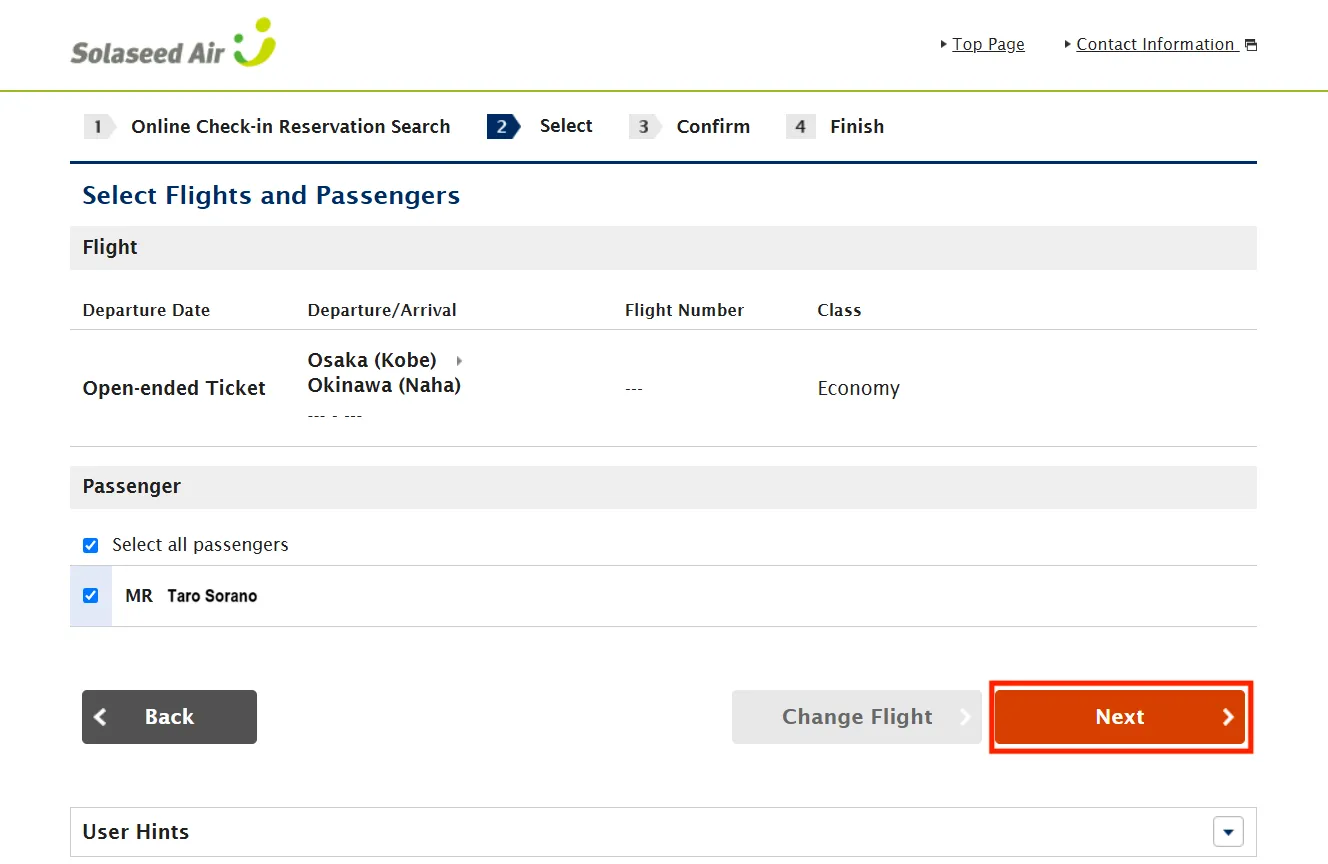
Flights eligible for online check-in in your itinerary are displayed.
All passengers on the same reservation are shown.
Select all the passengers to check-in, and click (tap) "Next".
- If you have not selected a seat, you are directed to the Seat reservation screen.Select a seat and click (tap) "Next".
STEP5
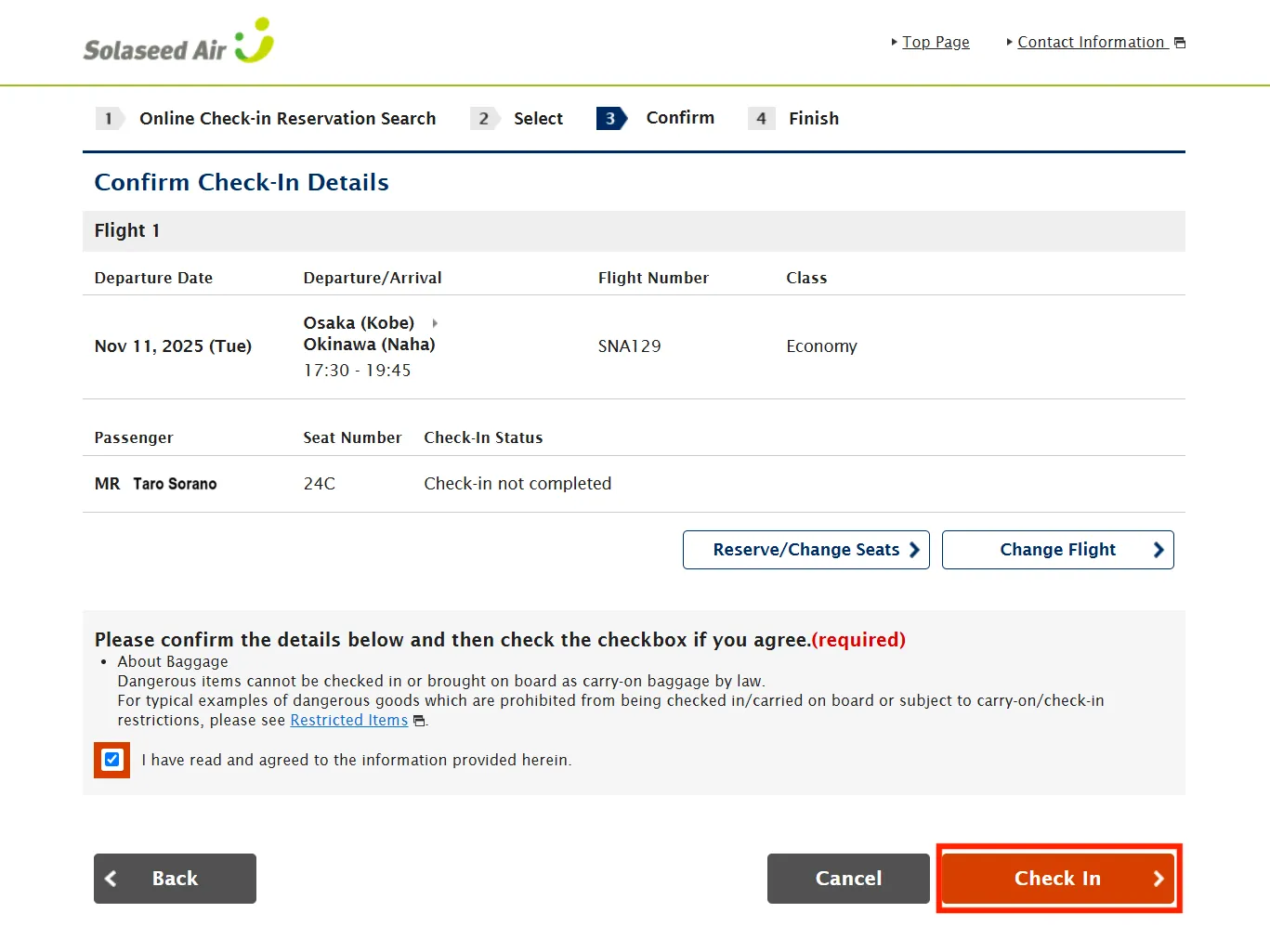
Confirm the itinerary and passengers that you are checking in online for.
- If you wish to change your seat, click (tap) "Reserve/Change Seats".
STEP6
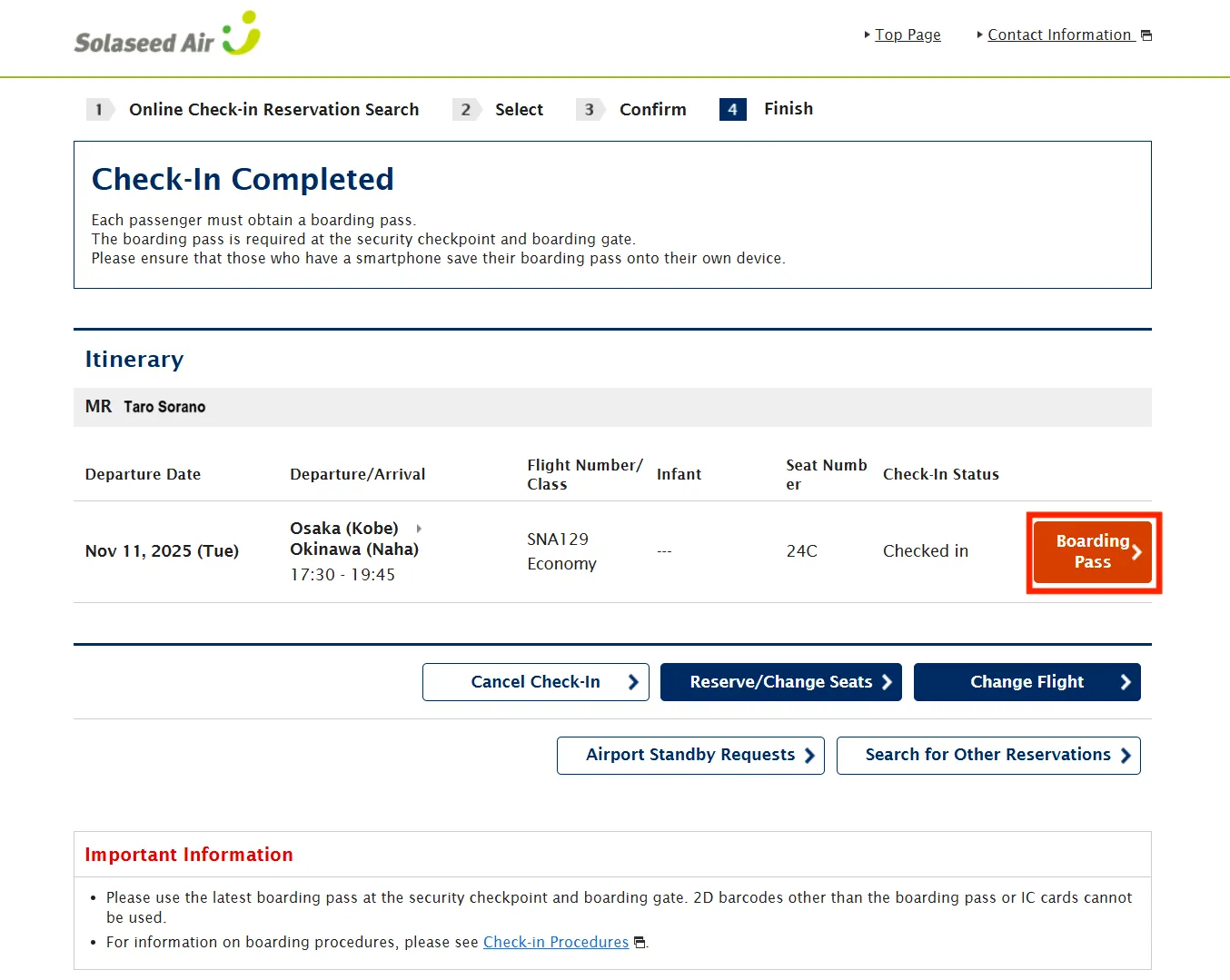
Once online check-in is complete, display your boarding pass.
STEP7
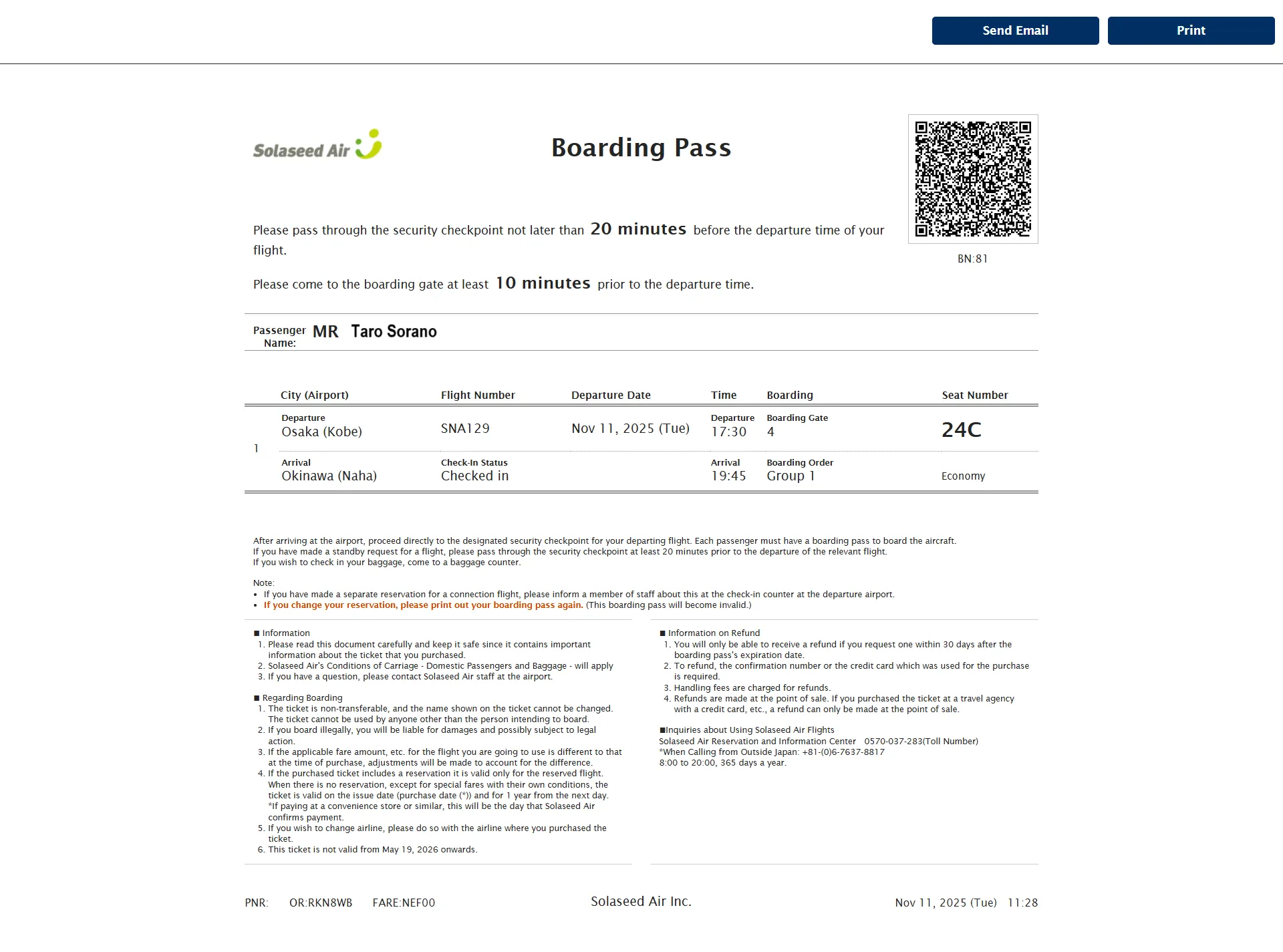
Print your boarding pass (2D barcode) or save the screen displaying your boarding pass.
- If using a PC for online check-in, print your boarding pass and bring it to the airport on the day of your flight.
- If using a smartphone for online check-in, save the screen displaying your boarding pass. (If using an iPhone for online check-in, you can add your boarding pass to your Apple Wallet.)
There are two ways to check-in online. You can check-in online either through the Reservation Details screen or by directly visiting our website for online check-in.
If you reserved your flight ticket through Solaseed Air website, you can check-in online in either way.
If you reserved your flight ticket through other than Solaseed Air website, please follow "Directly check-in online".
Cautions
- After online check-in is complete, print your boarding pass (2D barcode) or save the screen displaying your boarding pass and bring it to the airport on the day of your flight.
Online check-in through the Reservation Details screen
STEP1
STEP2

Please enter the first name and last name (in alphabetical characters) and the reservation number or e-ticket number for the purchased e-ticket.
If you are a Solaseed Smile Club member, please click (tap) "Log In."
STEP3

On the reservation details screen, click (tap) "Proceed to Online Check-in."
- The "Online Check-in" button will be displayed from 24 hours prior to departure time.
STEP4

Flights eligible for online check-in in your itinerary are displayed.
All passengers on the same reservation are shown. Select all the passengers to check-in, and click (tap) "Online Check-in".
STEP5

If you have not selected a seat, you are directed to the Seat reservation screen. Select a seat and click (tap) "Register".
STEP6

Confirm the itinerary and passenger(s) for whom you will perform online check-in, then click (tap) "Online Check-in."
- If you wish to change seat or passenger information, please click (tap) "Change."
STEP7

Review the information regarding baggage, check the checkbox, and click (tap) "Next."
STEP8

After completing online check-in, click (tap) "Issue Boarding Pass" to display your boarding pass (2D barcode).
STEP9

Please select your preferred method from "Print" or "Receive via email."
STEP10

Print your boarding pass (2D barcode) or save the screen displaying your boarding pass.
- If using a PC for online check-in, print your boarding pass and bring it to the airport on the day of your flight.
-
If using a smartphone for online check-in, save the screen displaying your boarding pass.
(If using an iPhone for online check-in, you can add your boarding pass to your Apple Wallet. For Android devices, you can save your boarding pass (2D barcode) by using a screenshot (screen capture)).
Directly check-in online
Cautions
- Please prepare the date and number of your reserved flight and your reservation number or e-ticket number.
STEP1
STEP2

Please enter the first name and last name (in alphabetical characters) and the reservation number or e-ticket number.
STEP3

Flights eligible for online check-in in your itinerary are displayed. All passengers on the same reservation are shown. Select all the passengers to check-in, and click (tap) "Online Check-in".
STEP4

If you have not selected a seat, you are directed to the Seat reservation screen. Select a seat and click (tap) "Register".
STEP5

Confirm the details, then click (tap) "Online Check-in."
- If you wish to change seat or passenger information, please click (tap) "Change."
STEP6

Review the information regarding baggage, check the checkbox, and click (tap) "Next."
STEP7

After completing online check-in, click (tap) "Issue Boarding Pass" to display your boarding pass (2D barcode).
STEP8

Please select your preferred method from "Print" or "Receive via email."
STEP9

Print your boarding pass (2D barcode) or save the screen displaying your boarding pass.
- If using a PC for online check-in, print your boarding pass and bring it to the airport on the day of your flight.
-
If using a smartphone for online check-in, save the screen displaying your boarding pass
(If using an iPhone for online check-in, you can add your boarding pass to your Apple Wallet. For Android devices, you can save your boarding pass (2D barcode) by using a screenshot (screen capture)).