
How to Cancel Your Online Check-in
STEP1

STEP2
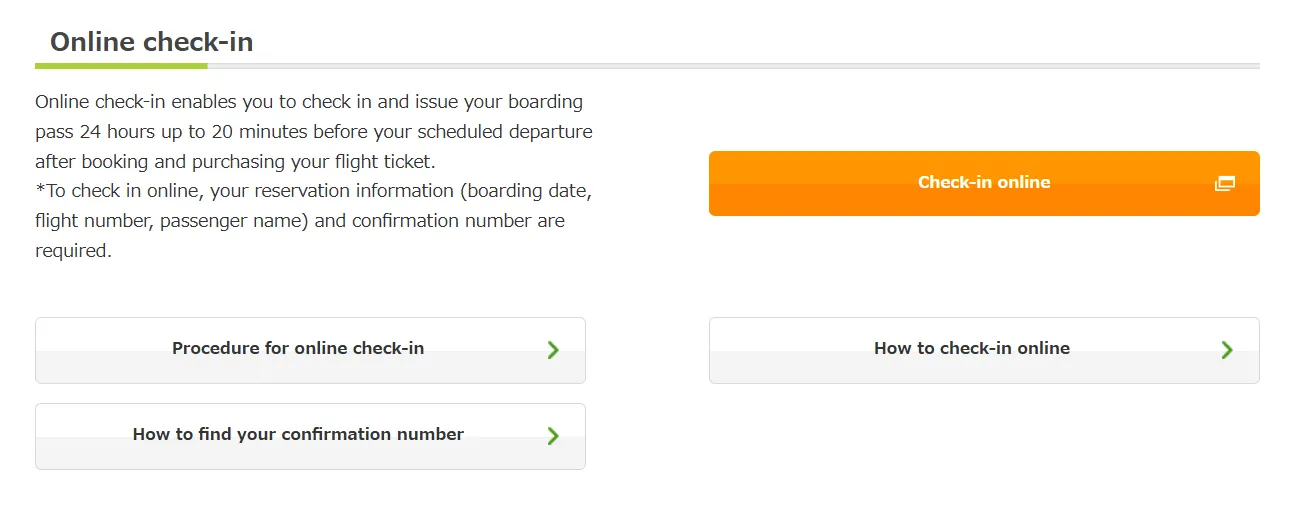
Click (tap) "Check-in online".
STEP3
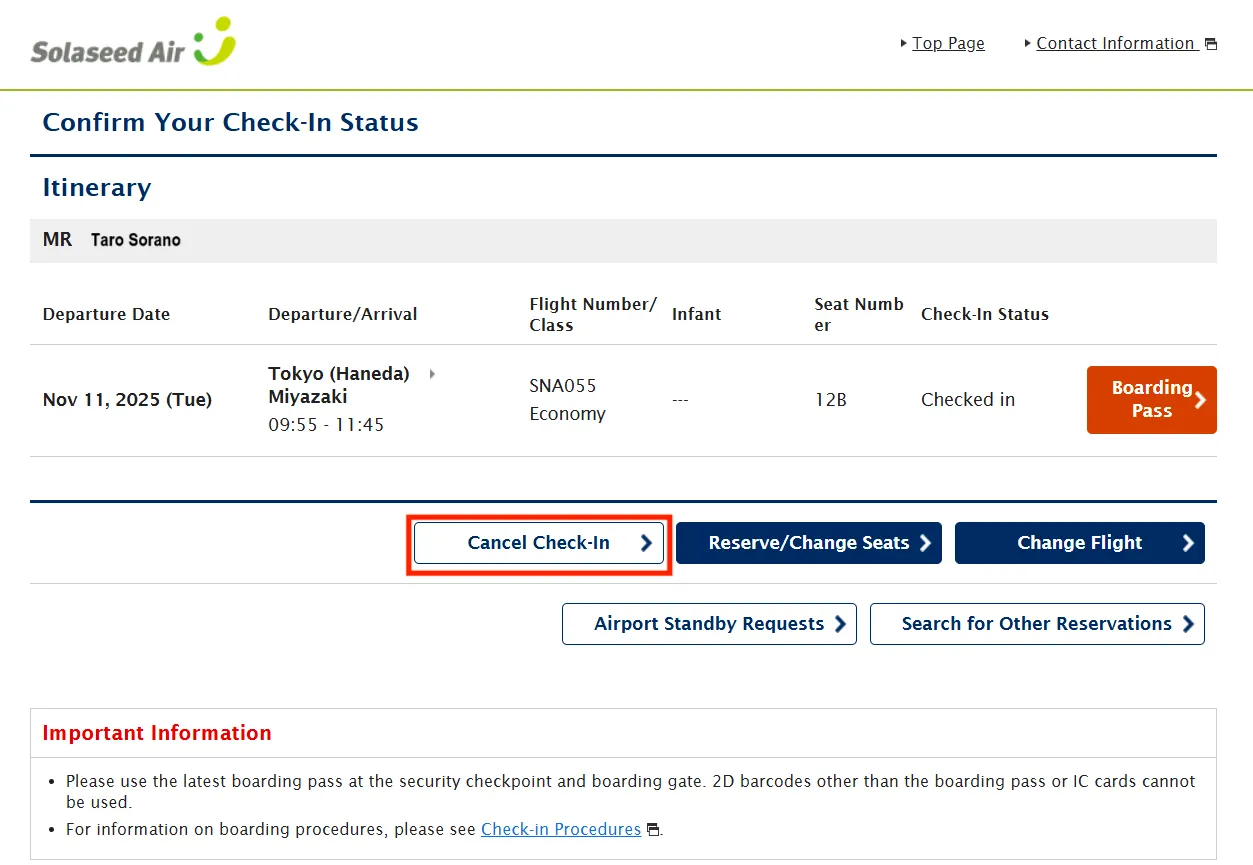
STEP4
Confirm the details you checked in and click (tap) "Cancel Check-in".
STEP5
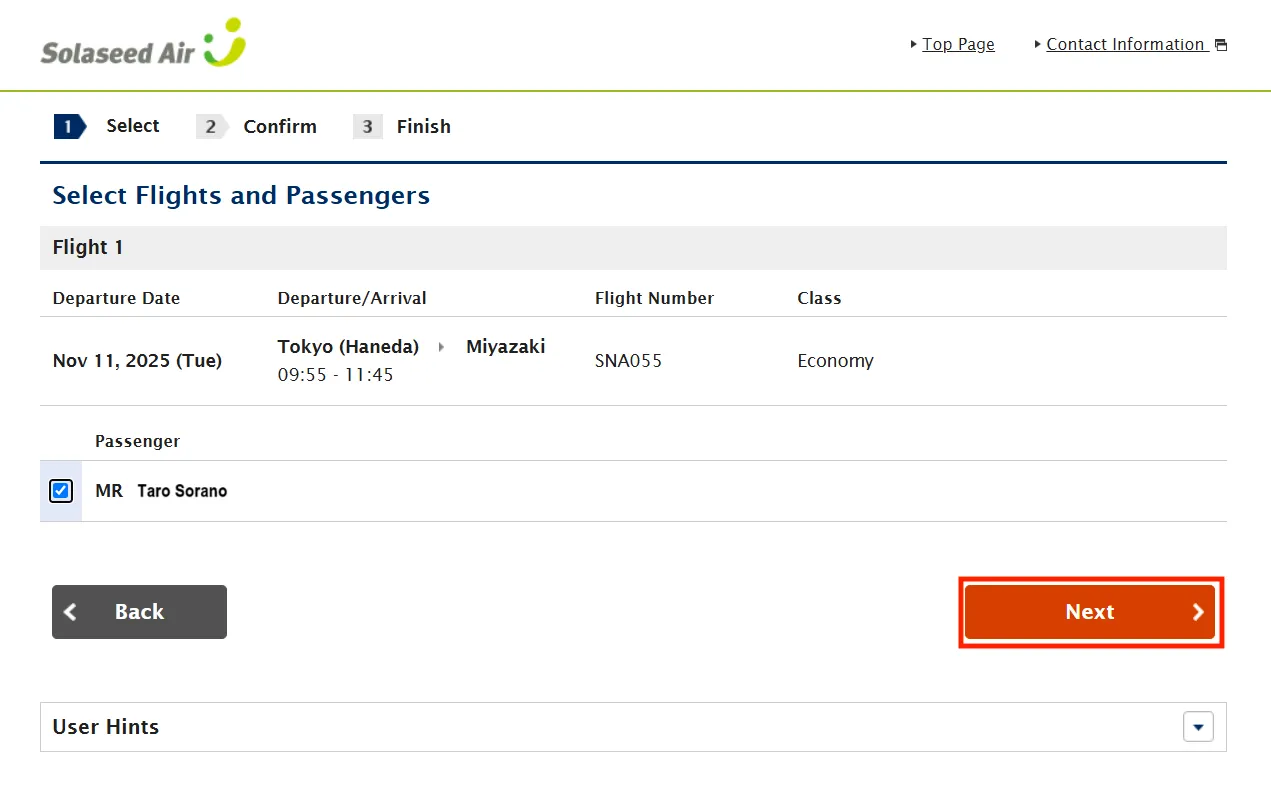
Select all the passengers who cancel the check-in and click (tap) "Next".
STEP6
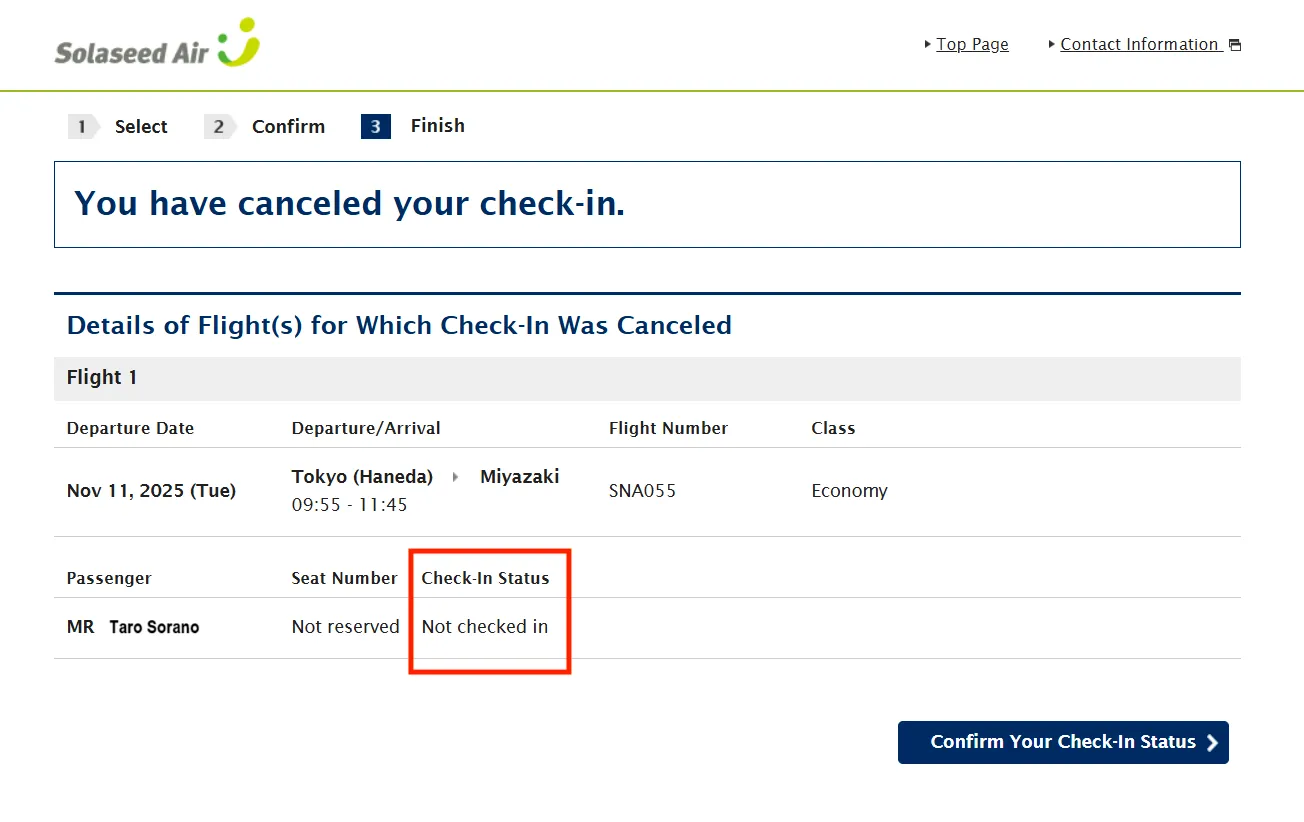
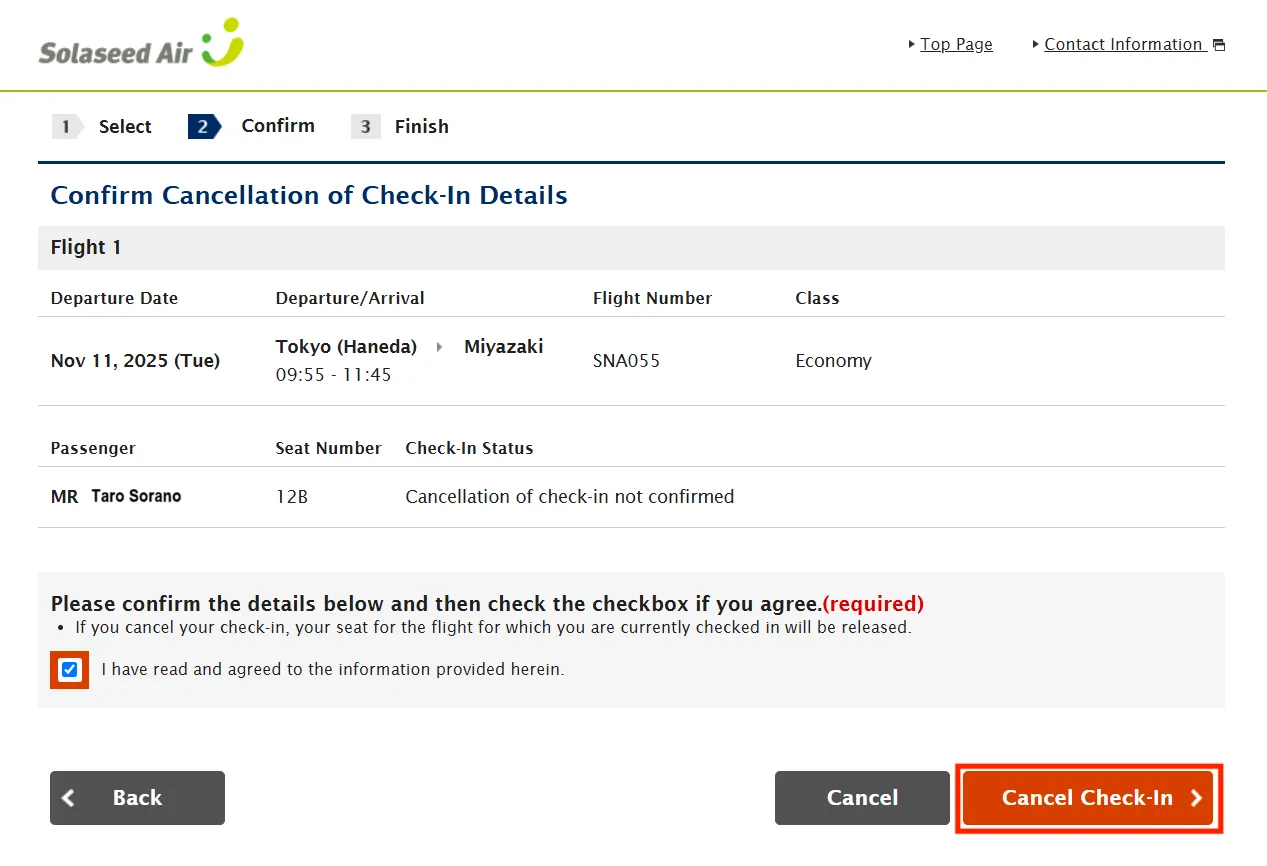
Confirm the details you would like to cancel and click (tap) "Cancel Check-in".
- If you have changed your reserved flight or seat reservation on the online check-in site, your currently reserved seat is cancelled at the same time of cancelling the check-in. Reserve the seat again at the time of checking in.
STEP7
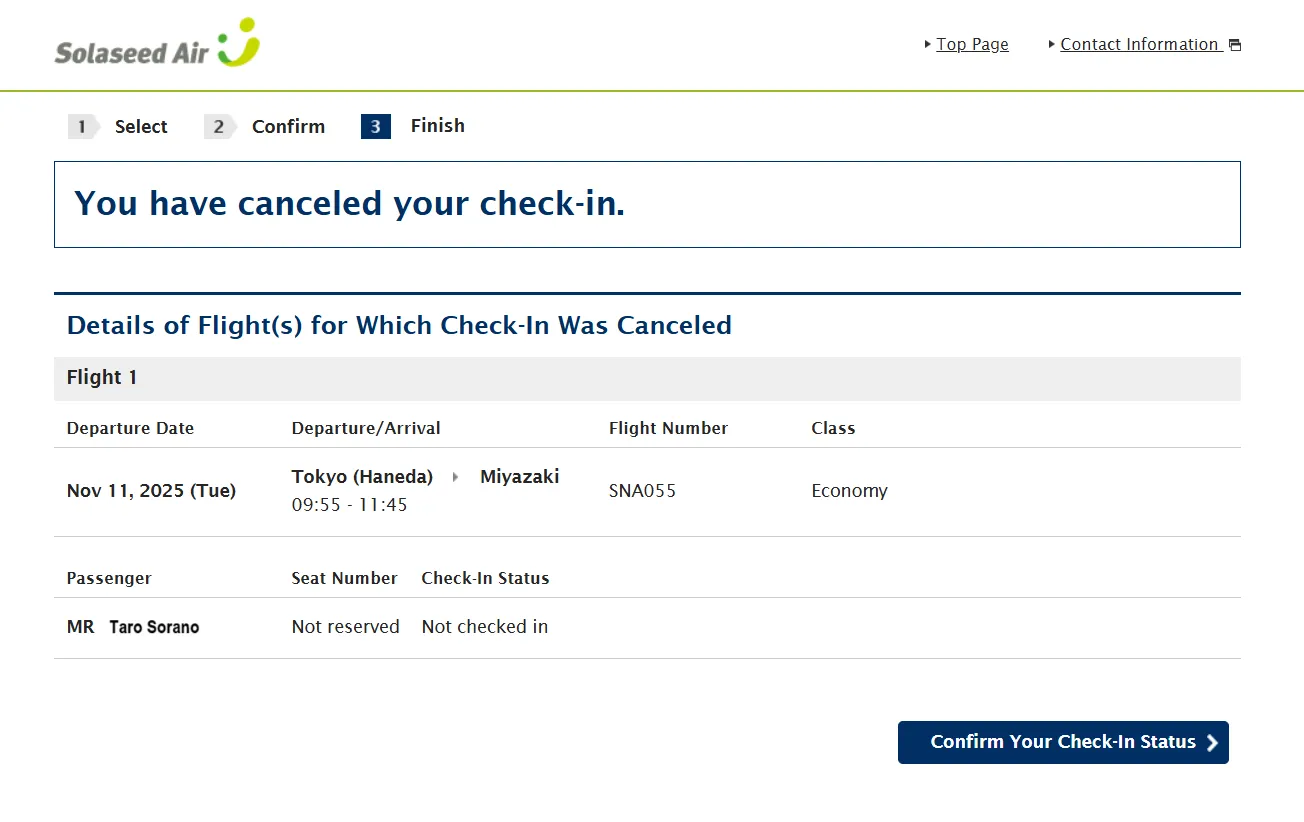
Check-in cancellation procedure completed.
STEP1
Click (tap) "Check-in procedure (online check-in)" on the home page or "Check in" below.
STEP2

STEP3

After confirming the checked-in details, click (tap) "Proceed to Online Check-in."
- This will also be displayed for customers who have already completed online check-in.
STEP4

Click (tap) "Cancel Online Check-in."
STEP5

Select all passengers for whom you wish to cancel check-in, and click (tap) "Cancel Online Check-in."
STEP6

After confirming the details of the check-in cancellation, click (tap) "Confirm" in the pop-up that appears.
- If you have changed your reserved flight or seat reservation on the online check-in site, your currently reserved seat is cancelled at the same time of cancelling the check-in. Reserve the seat again at the time of checking in.
STEP7

Check-in cancellation procedure completed.
- If you cancel the flight, apart from check-in cancellation, go through reservation cancellation and refund procedures. For details, please check the refund procedures.